As the HAR would contain multiple requests, these few common steps can be followed to locate the request to be checked.
-> Anything too random can be ignored in the first iteration - if we have a very random string of characters, scripts etc that are not relevant - they can be ignored. Here, the hit with on_hold seems to be readable.
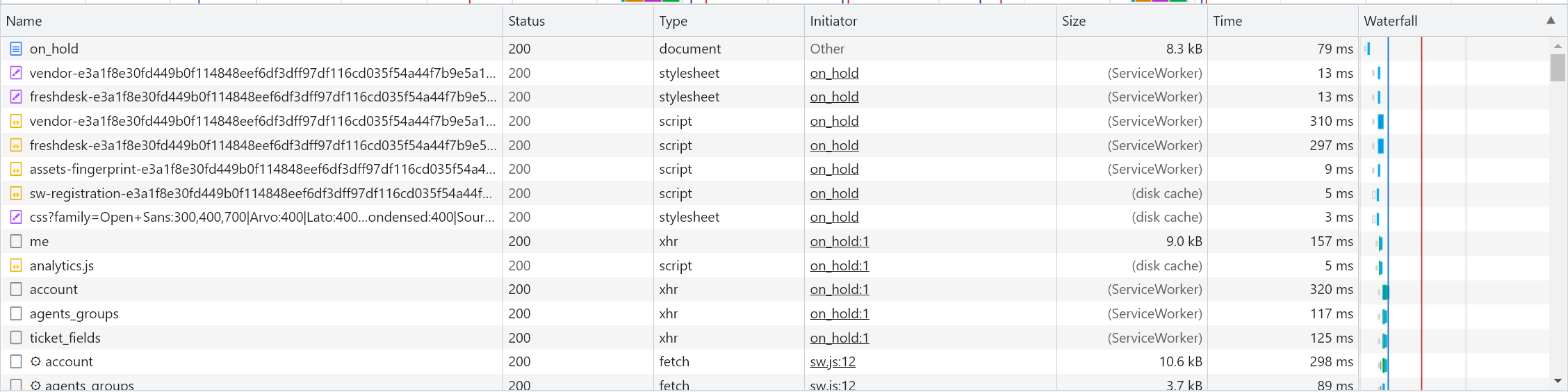
When an update to a ticket, agent, automation etc is made, the ID of the corresponding entity would be logged. Here is a sample.

->Check the request method. In the above example, the method is PUT - implying a change was made. The hit below the ID is a GET call to list the automation.
-> If too many requests are present, use the filter option for desired term. You can filter by type to haveonly GET calls, fetch requests or only scripts etc.
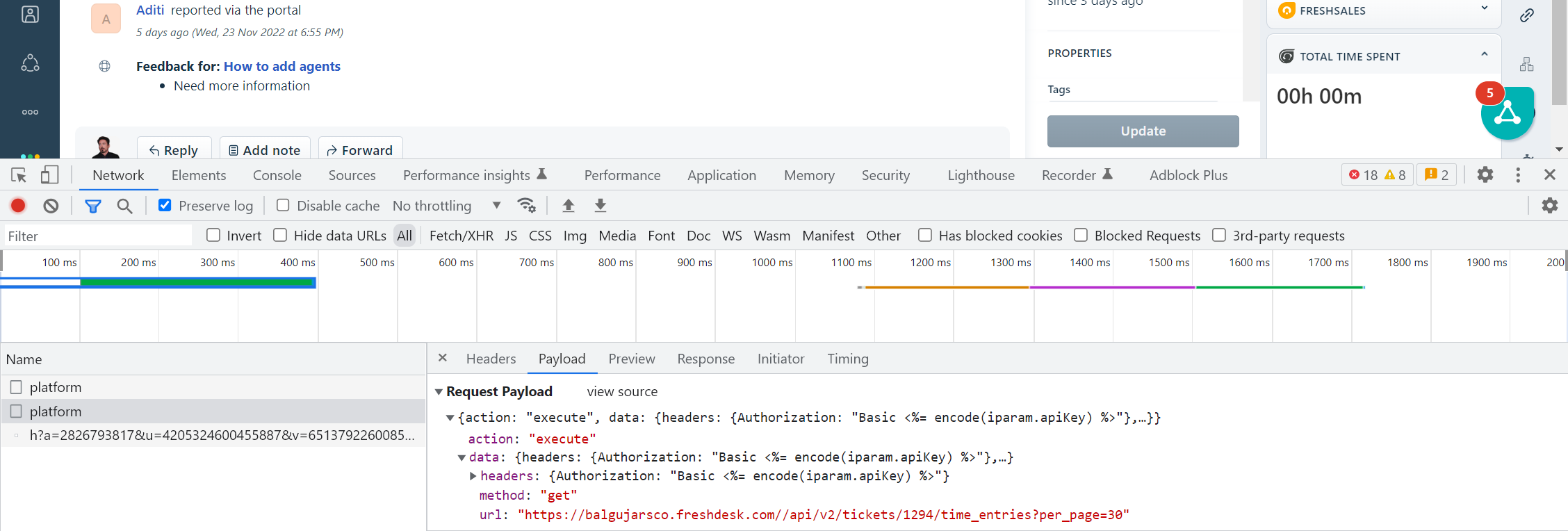
-> Check the Preview/Response and Payload tab as well. This is especially useful for app-related changes, the preview and payload tab should be checked. These entries will not have an ID to identify but might be a platform or data_pipe request.
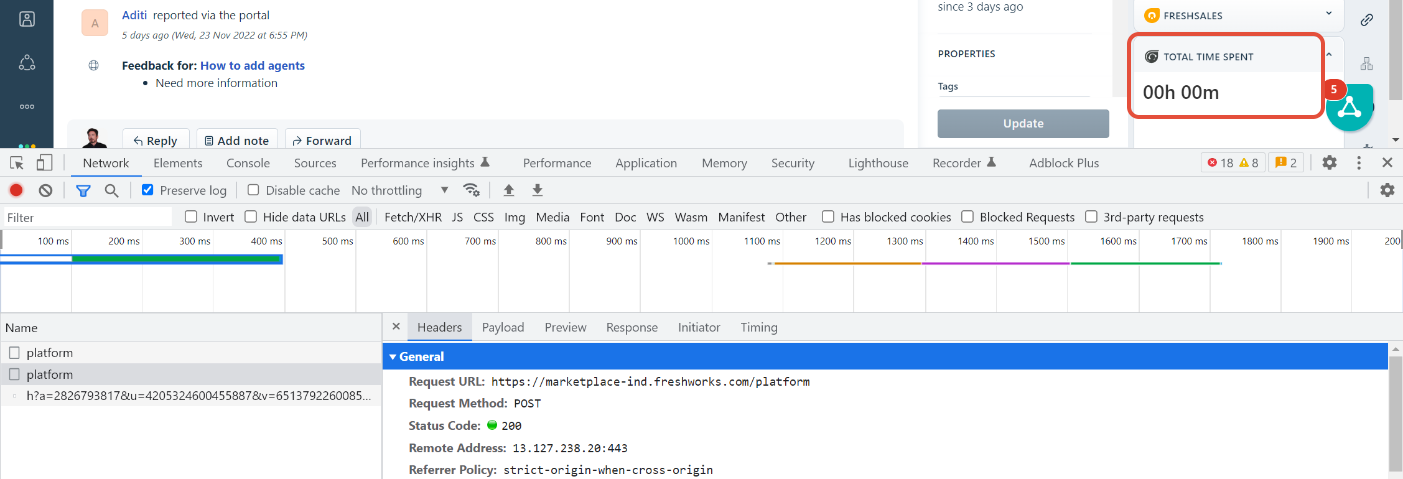
Sample: Here I clicked the Total time spent widget. In the headers tab, it might not look relevant
However in Payload tab, you see the details of the endpoint.
Let's see a few case studies where information from HAR has helped.
1. Case of list view not accessible by certain user -
When loading a page - ticket list view, ticket or even the helpdesk, if there are any issues with loading only for certain agents and not with OA access i.e they are not reproducible at our end, we can do some preliminary checks to understand what might be causing it
We would need the HAR from the agent facing the issue. A videograb would also help.
Open the Dev Tools > Network Tab > Turn off recording > Import (upward arrow) the HAR file
Once the request log loads, we should locate the hit that is requesting the page and check the status, for eg: ticket list view. We can either filter out requests - Fetch/XHR as well.
As you can see here, there is a request to load ticket list view with 499 status
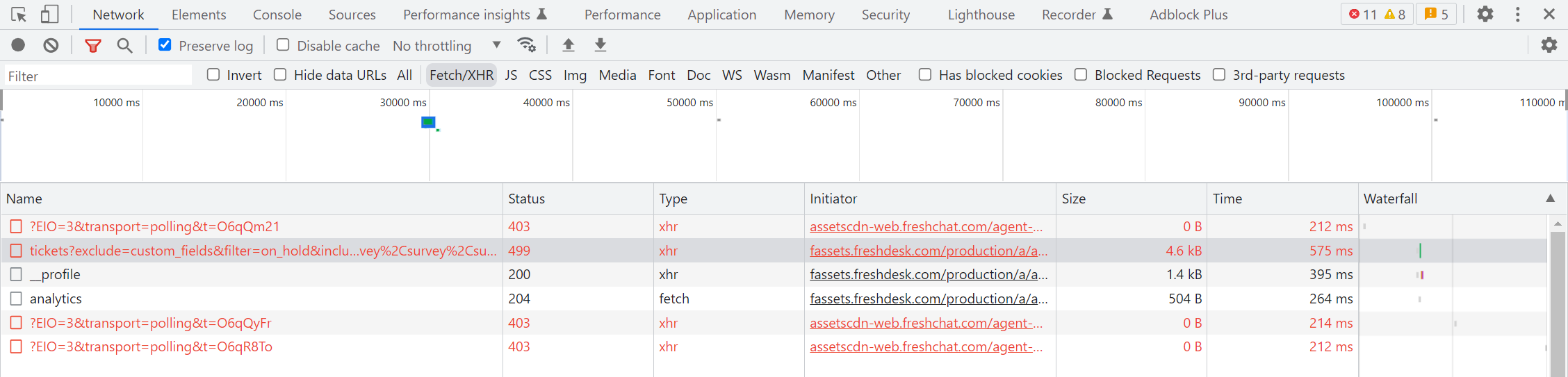
Click on the hit > Response tab and check for any straightforward errors - 5xx or 4xx.
Next, we check Preview tab (as it would show a preview of the page that was requested) for any blocks by anti virus, firewall or VPN at customer end.
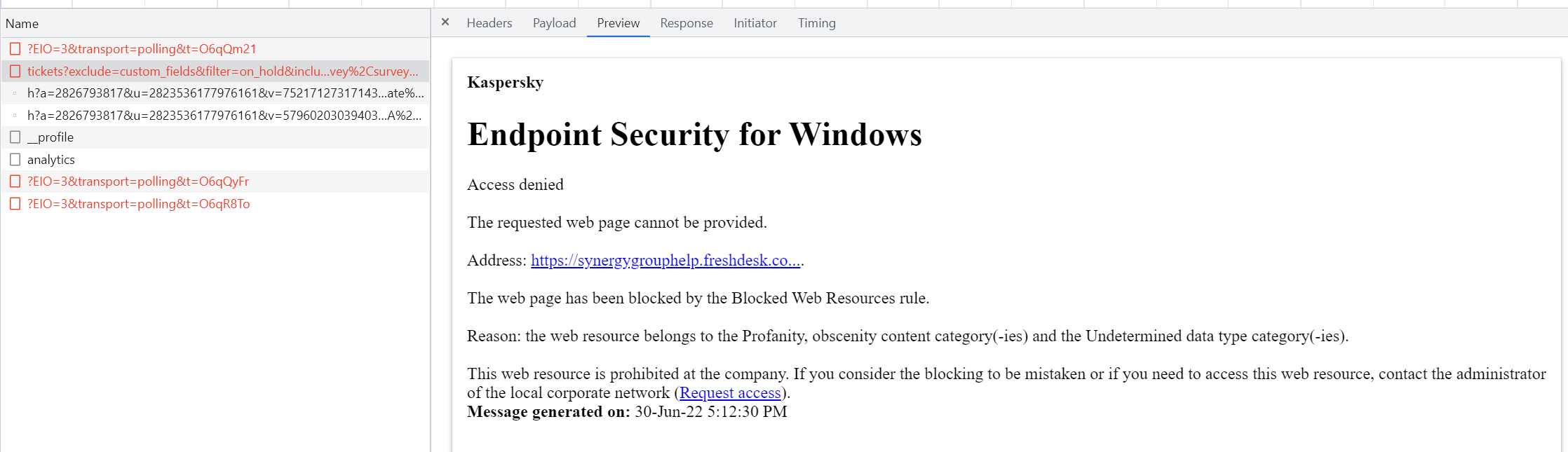
Here is a sample of the process and ticket: HAR sample 1
Reference ticket : https://support.freshdesk.com/a/tickets/12334119
2. Case where app settings wouldn't load -
We'll be taking the example of Slack Legacy app here. In case there is a redirection to app gallery when you click edit settings. You'll notice a split second message before the App gallery loads again. Let's see how this can be found in HAR.
So once we import the HAR, as the response is displayed in the UI for a split second, we will now remove the filters and see the hit with applications page. Navigate to Preview tab to see the page preview > scroll down to see the response
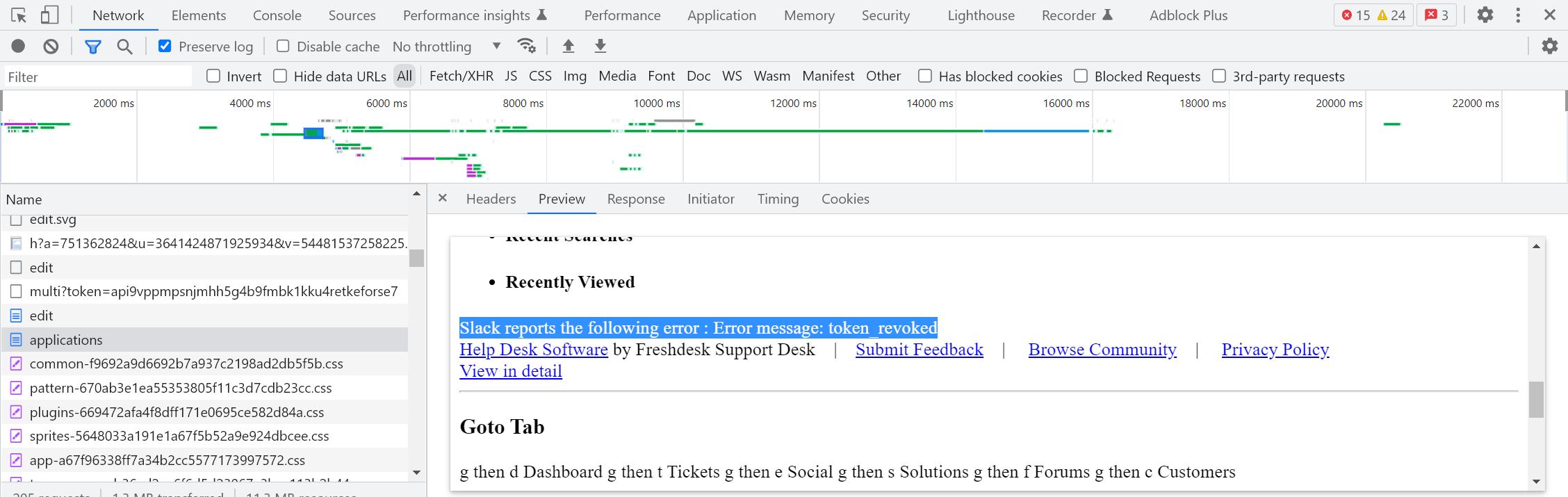
Videograb : HAR sample 2
(Tip: Check the GET requests using the Fetch option. If this does not give the desired result, try filtering out the term prior to checking every request individually)
Reference ticket :https://support.freshdesk.com/a/tickets/11793651
3. Case of issues in installing app (Slack for eg, process might apply to others) -
Similar to the above case, we can check if any specific error message is present - but is not displayed in UI
Following the steps in the Case 2, we just see a generic - "Error while installing the app."
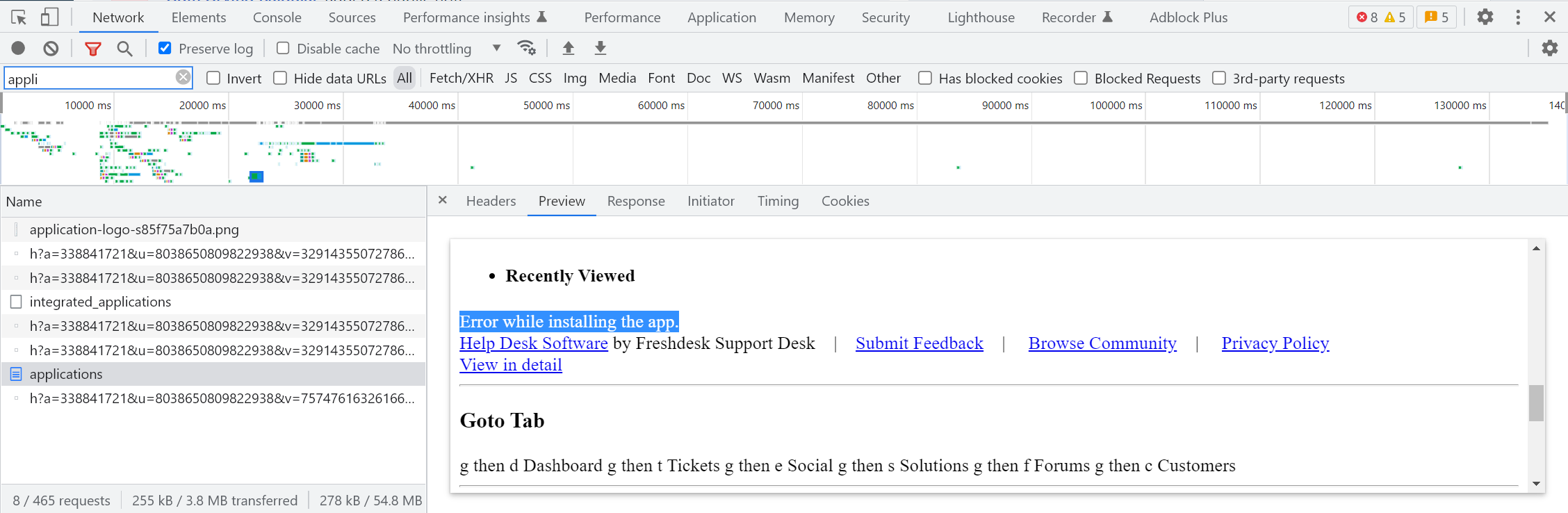
To check the actual error in logs, clear the filters and make sure it is in "All". Now search for install, installed_applications or slack (eg of slack app here)
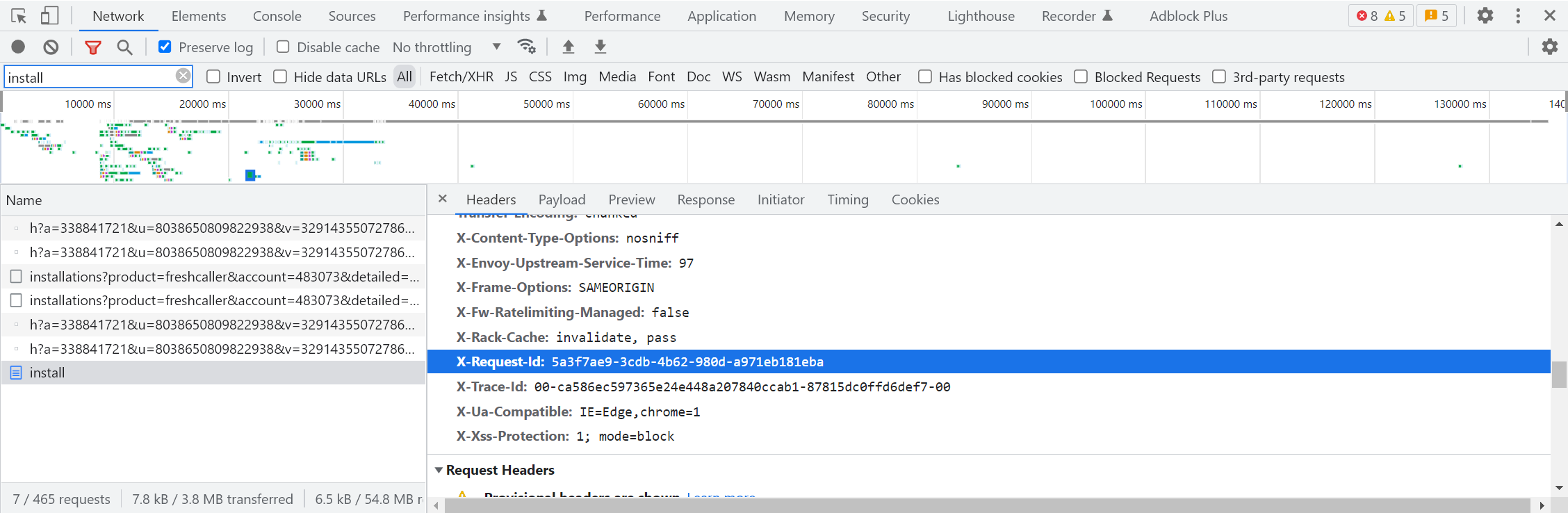
Check for X-Request-ID in Response headers and check it in Haystack > Marketplace logset for the error. For few apps, we can also try Freshdesk logset for any hits.
Sample logs:
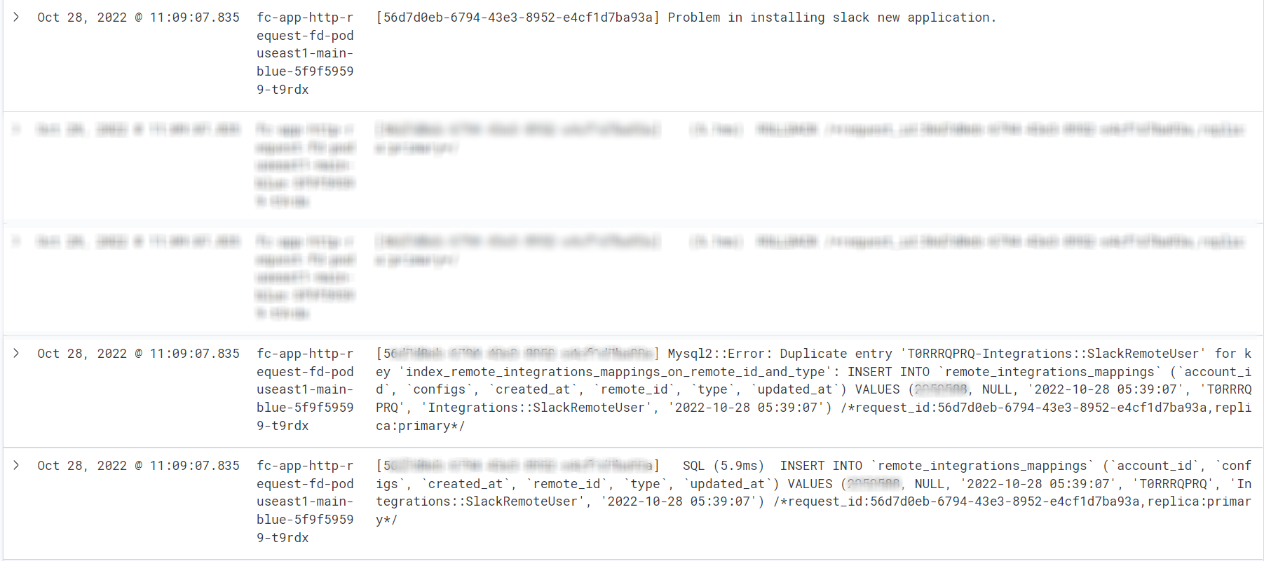
If slack is already installed in one account, it cannot be installed for other accounts. We would have to find the account where it is installed and then delete the app.
Reference tickets: https://support.freshdesk.com/a/tickets/12869643 | https://support.freshdesk.com/a/tickets/8893148
4. Case where app cannot be accessed or uninstalled -
Following Case 2, To check the actual error in logs, clear the filters and make sure it is in "All". Now search for install, installed_applications or fetch
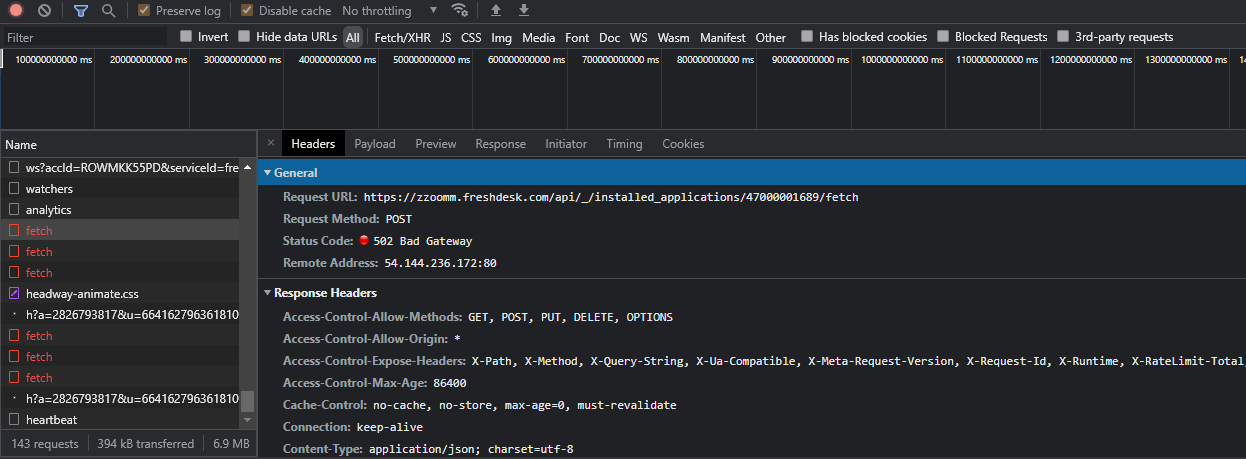
Check for X-Request-ID in Response headers and check it in Haystack > Freshdesk logset for any hits. If no hits, then we can try Marketplace logset.
Reference ticket - https://support.freshdesk.com/a/tickets/10051252
5. How to view app configs of the app from HAR -
In case we are to check the app configuration but are unable to do so, due to expired API key/API key of deleted agent, we cannot get past the Account Validation.
In such cases, the app configs can be viewed from network logs or HAR.
We would need to have the dev tools and network tab open > click on Settings > Edit Settings > request with configs > Preview tab

Reference ticket : https://support.freshdesk.com/a/tickets/13139743
6. Case of URL details in widget tickets -
Whenever we raise a ticket from the Feedback widget from a solution article page, the meta-information does not contain the entire URL and instead only the domain. We capture these details based on the Referrer HTTP header.
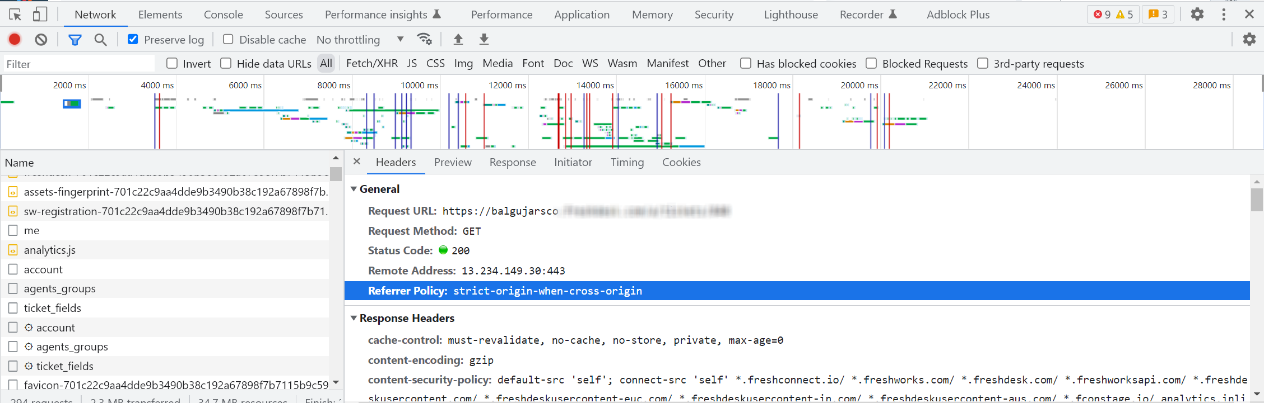
When the URL of the portal is different from the URL of the actual account, the browser only captures the origin of the referrer since the default referrer policy is 'strict-origin-when-cross-origin' so, only the origin will be shown in created tickets.
The referrer policy can be checked in the Headers tab > General Header
Reference ticket : https://support.freshdesk.com/a/tickets/12231046
7. Case of too many redirects -
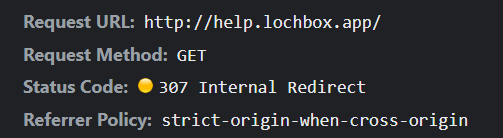
We can check the HAR provided and the status code - 302 or 307 refers to redirections and 307 status is specific to internal redirects.
In this ticket, the customer was facing too many redirects error and helpdesk was not loading with their vanity URL. On checking the HAR, the status was 307 and the server name was not from Freshdesk (fwe in most cases) when Response headers were checked.
For more details -
Reference ticket : https://support.freshdesk.com/a/tickets/12457369
Was this article helpful?
That’s Great!
Thank you for your feedback
Sorry! We couldn't be helpful
Thank you for your feedback
Feedback sent
We appreciate your effort and will try to fix the article